

How to Message Someone on Spotify: Music Sharing, Group Chats & Artist Tips (2026)
Yes, you can message people on Spotify. This 2026 guide explains how Spotify Messages works, who you can DM, how to start a group chat, and what the feature means for artists.
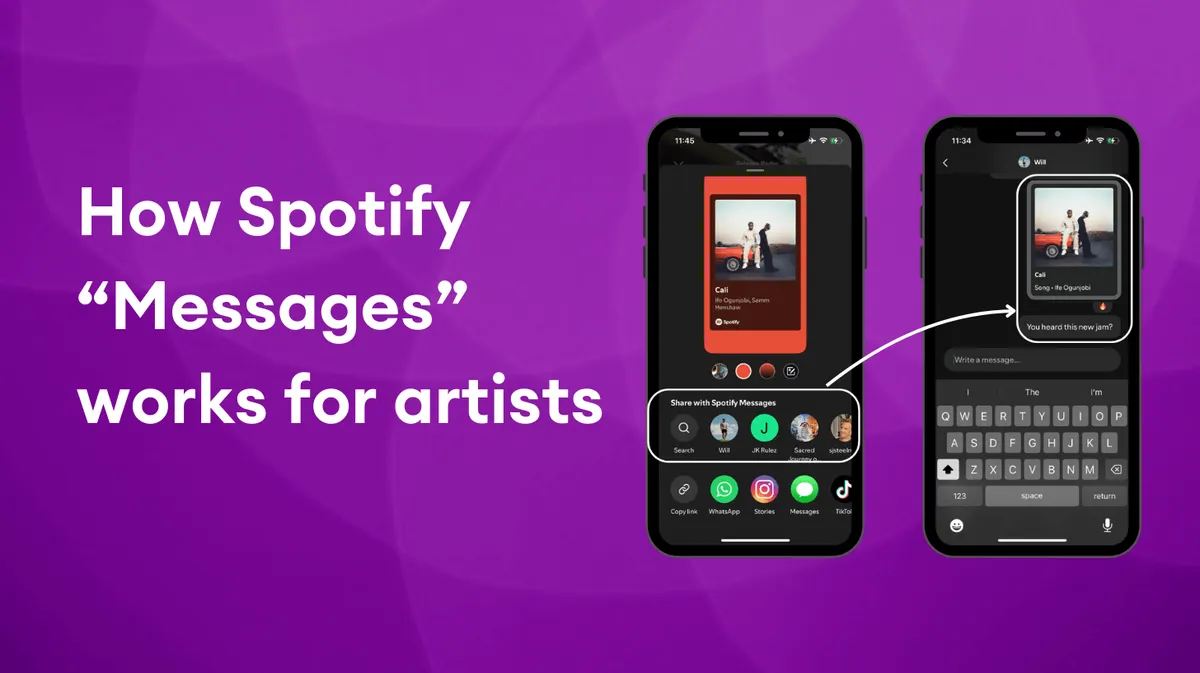
Updated for 2026
Yes, you can message someone on Spotify. The feature is called Spotify Messages, and it lets eligible users send text, songs, playlists, albums, podcast episodes, audiobooks, artist pages, live events, and more without leaving the Spotify mobile app.
To send a Spotify DM, tap your profile picture, scroll to Messages, choose New message, and select a suggested friend. You can also tap Share on a song or other Spotify content and send it directly to one person or a group.
Spotify launched one-to-one Messages in 2025, but the feature is much more capable in 2026. It now includes group chats with up to 10 friends, optional Listening Activity, requests to start a Jam, message deletion, notification controls, and invite links.
What Is Spotify Messages?
Spotify Messages is the app’s built-in direct messaging feature. It gives friends and family a private place to share Spotify content and talk about what they are listening to.
Messages is available in the Spotify mobile app for Free and Premium users aged 16 or older in markets where the feature is supported. It is not an open inbox where anyone can search for any username and send a cold message. Spotify mainly suggests people you already know or have interacted with through its sharing and social features.
According to Spotify, almost 40 million people sent nearly 340 million messages between the feature’s August 2025 launch and January 2026. That early use helps explain why Spotify quickly expanded DMs into group conversations, listening-status sharing, and Jams.
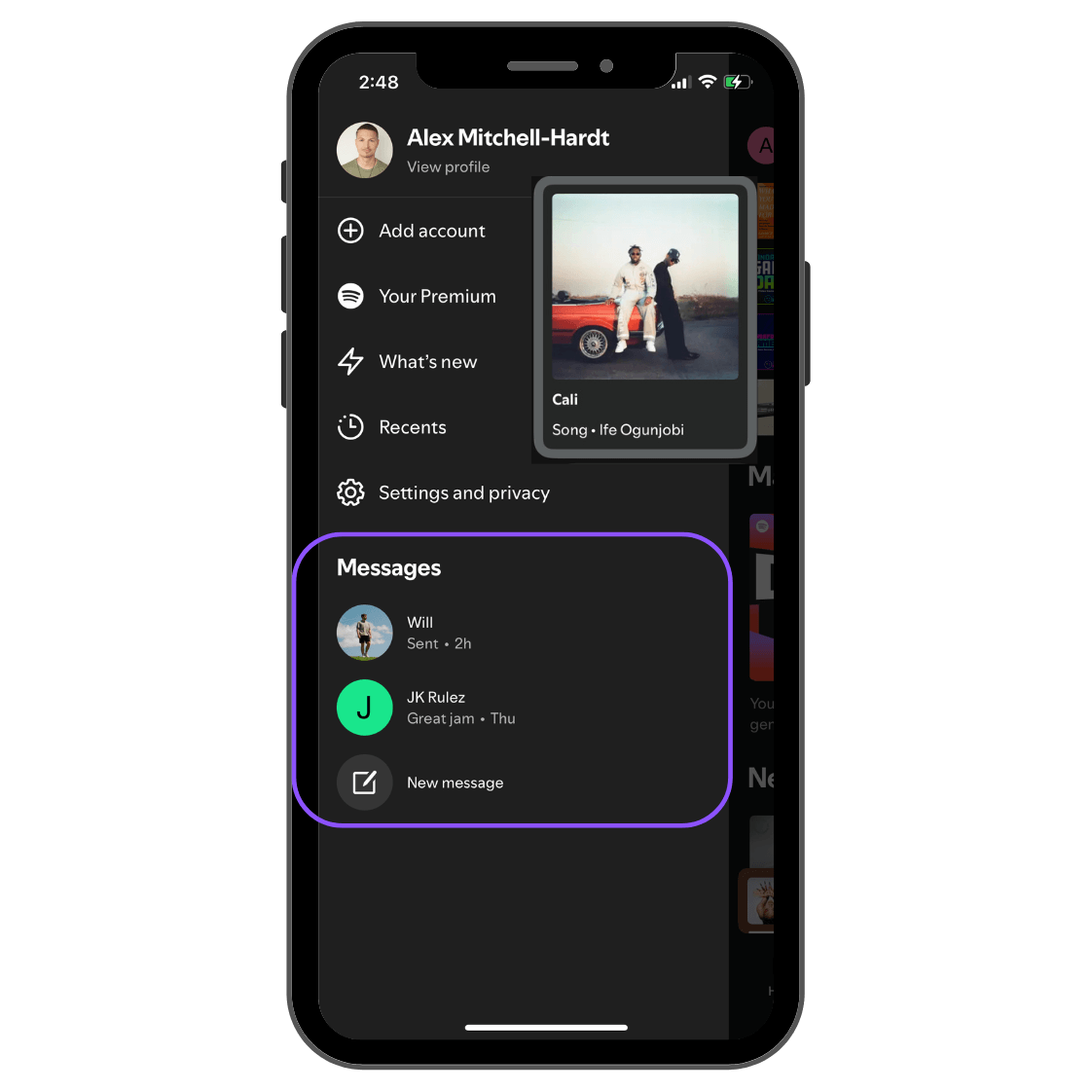
How to Message Someone on Spotify
There are two ways to start a direct message: open a new chat from your Messages inbox or share something that is already playing.
Option 1: Start a New Spotify Chat
- Open the Spotify app on your iPhone or Android phone.
- Tap your profile picture at the top of the screen.
- Scroll to Messages.
- Tap New message.
- Choose someone from your suggested contacts.
- Write your message or share Spotify content.
If this is the first time you have messaged that person, Spotify sends a message request. The recipient can accept, delete, or block the request.
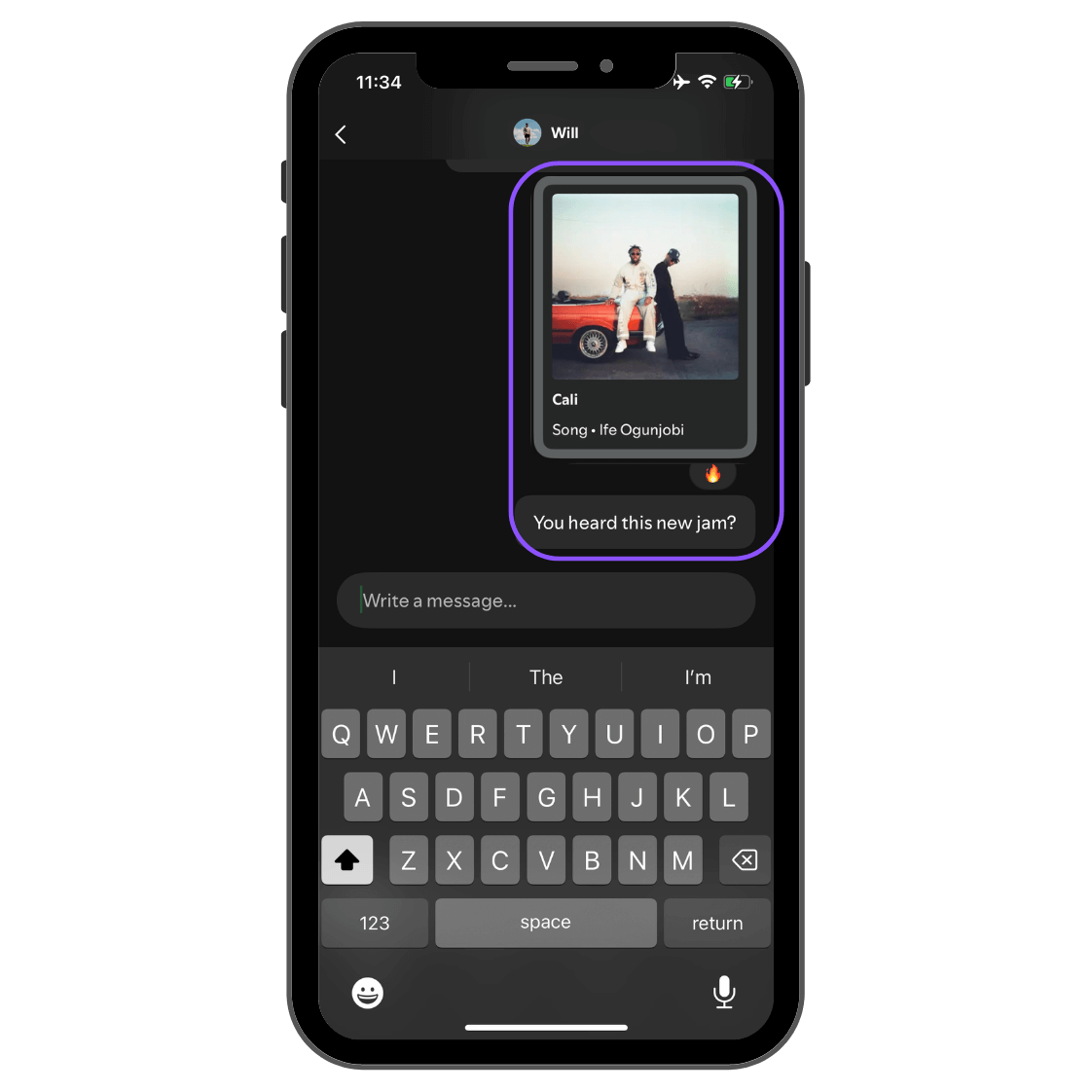
Option 2: Share a Song, Playlist, or Podcast in a DM
- Open the song, playlist, album, podcast episode, audiobook, artist page, live event, or Countdown Page you want to send.
- Tap the Share icon.
- Select a friend from the suggested list.
- Add text if you want, then tap Send.
You can select more than one friend from the share screen to start a group message. Spotify still supports sharing through text, WhatsApp, Instagram, and other apps, so you do not have to use Spotify Messages.
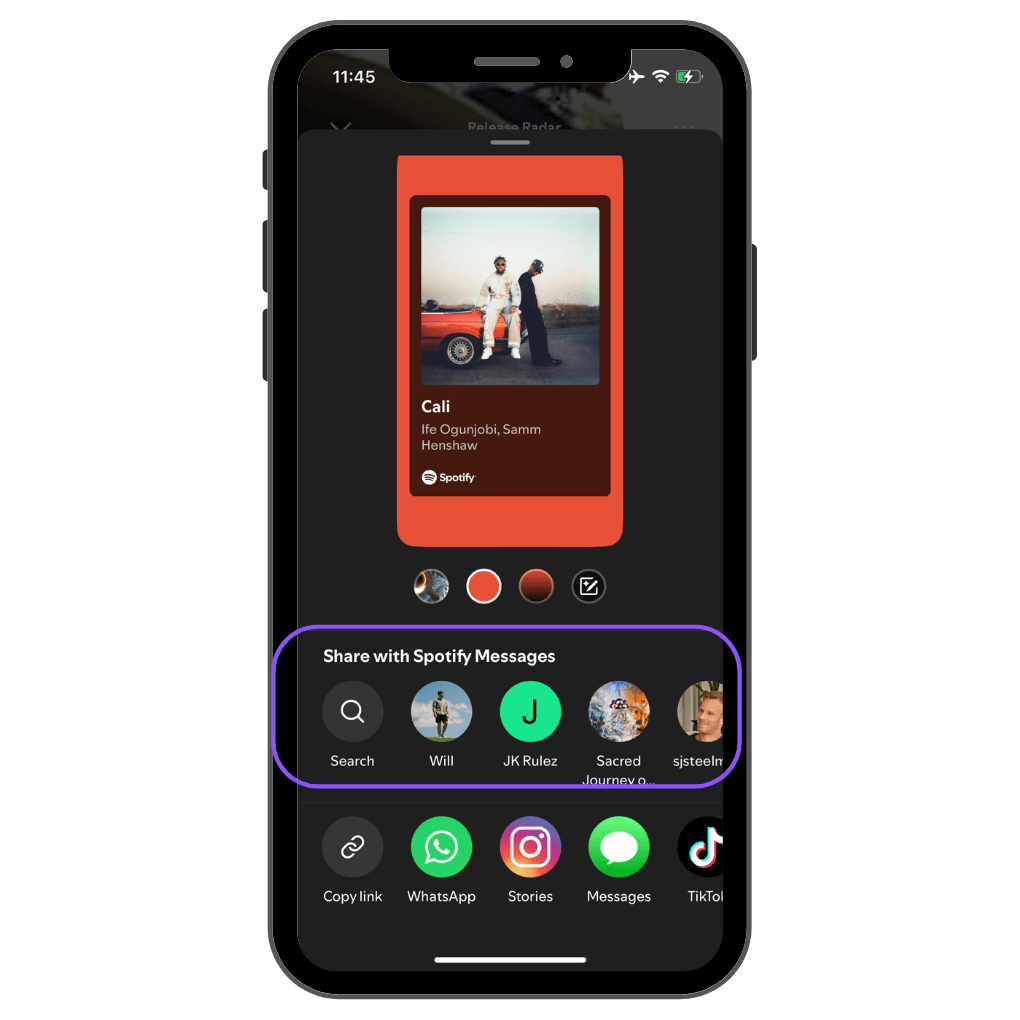
Where Are Messages on Spotify?
Your Spotify inbox is inside the mobile app:
- Tap your profile picture.
- Scroll down to Messages to see recent chats and message requests.
- Tap Show all to open the full inbox.
Spotify’s current help page lists Messages as a mobile feature. If you are looking in the desktop app or web player, you may see Listening Activity, but not the full Messages inbox.
How to Message Someone Who Is Not in Your Suggested List
Spotify suggests people when you have already done at least one of the following:
- Shared Spotify content with each other
- Created a Blend together
- Used a collaborative playlist together
- Joined a recent Jam together
- Shared a Premium Family or Duo plan
If your friend does not appear, use Spotify’s invite-link option and send the link through another app. After the person opens it, Spotify can add them to your suggested contacts.
This limitation is important: Spotify Messages is designed for existing connections. You cannot use it like an open people search to contact any listener or artist on the platform.
How to Create a Spotify Group Chat
Spotify added group Messages in January 2026. A group can include up to 10 friends.
- Tap your profile picture.
- Scroll to Messages.
- Tap Create group.
- Choose friends from your suggested list.
- Tap Create group again to confirm.
You can also create a group by selecting multiple friends when sharing a song, playlist, podcast, or other Spotify content.
The person who creates the group becomes its admin and can add or remove members. People who leave or are removed will not see messages sent while they are out of the group.
What Can You Send in Spotify Messages?
Spotify currently supports:
- Text messages
- Songs, playlists, and albums
- Artist pages
- Podcast episodes
- Audiobooks
- Live events
- Countdown Pages
- Emoji reactions
- Requests to start or join a Jam
The feature is centered on listening and discovery. Spotify’s documentation does not list photo, video, voice-note, or file attachments as supported message types.
Listening Activity and Request to Jam
In 2026, Spotify connected Messages with two other social features: Listening Activity and Request to Jam.
Listening Activity lets friends see the song you are playing—or your most recently played song—when you choose to share it. From that status, they can play the track, save it, react to it, or start or join a Jam.
Listening Activity is optional and can be managed under Settings and privacy > Privacy and social. You can also control who sees it. Spotify added Listening Activity to group chats in June 2026; if you already have activity sharing enabled, review each group’s chat settings to make sure you are comfortable with its visibility.
Request to Jam lets connected friends turn a conversation into a live shared listening session. A Premium user can send a remote Jam request from a Messages chat. If the other person accepts, participants can listen together and add tracks to a shared queue. Spotify requires Premium to host or join a remote Jam, although Free users can participate in some in-person Jam experiences hosted by Premium users.
Are Spotify Messages Private and Safe?
Spotify gives users several controls:
- New contacts arrive as message requests.
- You can delete or block a request.
- You can block a user from a chat or their profile.
- You can report unwanted content.
- You can turn Messages off completely.
- You can control message notifications separately.
There is an important privacy distinction. Spotify’s current U.S. help page says Messages are private between participants but are not encrypted. That wording differs from Spotify’s original 2025 launch announcement, which described encryption in transit and at rest. Based on the current help guidance, users should not treat Spotify Messages as an encrypted messenger or use it to exchange sensitive information.
How to Block Someone on Spotify Messages
- Open the chat.
- Tap the person’s name or profile picture in the chat header.
- Tap the three-dot menu beside their name.
- Select Block user, then confirm.
You can review blocked accounts under Settings and privacy > Privacy and social > Blocked users.
How to Turn Off Spotify Messages
- Tap your profile picture.
- Open Settings and privacy.
- Select Privacy and social.
- Scroll to Social features.
- Turn Messages off.
How to Turn Spotify Message Notifications Off
- Tap your profile picture.
- Open Settings and privacy.
- Tap Notifications.
- Choose Social features.
- Open Messages and turn notifications off.
How to Delete Spotify Messages
To delete a message, open the chat, press and hold the message, and choose Delete or Delete for you, depending on whether you sent or received it.
Spotify says you can remove your last four sent messages from everyone’s view. Other deletions may only remove the message from your own view.
To clear an individual conversation:
- Open the chat.
- Tap the person’s name or profile picture.
- Open the three-dot menu.
- Select Delete chat.
Deleting a chat does not notify the other person or erase it from their account. The conversation can also reappear if either person sends another message.
Why Are Spotify Messages Not Showing?
If you cannot find Spotify Messages, check these possibilities:
- You are using desktop or the web player. The full Messages feature is currently designed for mobile.
- Your app is out of date. Install the latest Spotify version from the App Store or Google Play.
- Your account is under the age requirement. Spotify says Messages is for users aged 16 and older.
- Messages is turned off. Go to Settings and privacy > Privacy and social > Social features and check the Messages switch.
- The feature is not enabled for your market or account. Spotify continues to describe these tools in terms of Messages-enabled markets.
- You have no suggested contact yet. Share an invite link with a friend, or interact through a Blend, collaborative playlist, Jam, Family plan, or Duo plan.
If Messages previously appeared and then disappeared, restart the app, sign out and back in, and reinstall Spotify if needed. Also check Spotify’s official support channels for an active service issue.
Can Artists Message Fans on Spotify?
Not through an artist-to-fan inbox. Spotify Messages is a listener messaging feature for existing personal connections. Spotify for Artists does not currently provide a tool that lets musicians search their listeners, send mass DMs to followers, or contact individual fans from audience analytics.
An artist can use Messages from a regular eligible Spotify account in the same ways as any other user, but that is different from gaining direct access to fans. As of August 2026, Spotify has not launched a scalable artist-to-fan direct messaging channel.
What Spotify Messages Means for Artists
The opportunity for artists is fan-to-fan sharing, not cold outreach.
1. A Recommendation Can Become a Conversation
A song sent by a friend carries context and trust that an untargeted impression does not. Spotify Messages reduces the number of steps between receiving a recommendation and playing it, while keeping the discussion next to the music.
2. Group Chats Expand Word of Mouth
One fan can now share a track with a group of up to 10 friends. That makes Messages useful for group playlists, road trips, parties, release-night listening, and other moments when music naturally spreads through a social circle.
3. Listening Activity Creates More Discovery Surfaces
When fans opt in, a track can appear as a live or recent listening status inside Messages. Their friends can play it, save it, react, or turn it into a Jam. For artists, that creates more chances for a song to move from passive listening into active recommendation.
To track your performance across platforms, explore our guide to the Top Music Analytics Tools for Independent Musicians.
4. Spotify Has Not Confirmed a DM “Algorithm Boost”
Spotify has not publicly said that sending a song in Messages directly raises its recommendation ranking. A DM may still lead to useful outcomes—streams, saves, playlist adds, repeat listening, or follows—but artists should not describe the message itself as a proven ranking signal.
For a clearer view of the metrics you can actually measure, see What Good Engagement on Spotify Actually Looks Like.
5. There Is No DM-Specific Artist Analytics Dashboard
Spotify has not documented a Spotify for Artists report that isolates streams caused by Messages. Watch for changes in listeners, saves, playlist adds, follows, and streams per listener, but avoid claiming that a spike came from DMs unless you have supporting campaign or audience evidence.
How Artists Can Use Spotify Messages Without Spamming Fans
Ask for One Relevant Share
Use a simple call to action in a release post, email, or video:
If this song reminds you of someone, tap Share in Spotify and send it to them.
That prompt is specific and natural. “DM this to 10 people” sounds like engagement bait and is less likely to create meaningful listening.
Give Fans a Reason to Start a Group Chat
Connect the song to a group moment: a workout, road trip, pregame, breakup recovery session, study night, or release-day listening party. A concrete use case makes sharing more likely than a generic request to “run it up.”
To understand which fans drive the most long-term value, read Why Spotify Super Listeners Matter.
Use Jams as a Release Experience
Encourage existing fan communities to host a Jam around a new release, then discuss the track in their group message. Do not imply that artists can invite all followers directly; the feature works through existing user connections.
Pair DMs With Broader Sharing
Spotify itself positions Messages as a complement to Instagram, WhatsApp, TikTok, Snapchat, and other channels. Keep using the platforms where fans already talk. Spotify Messages is most valuable at the moment someone is ready to listen.
For more ways to share your releases, see How Spotify’s Instagram Tools Help Artists Promote Music.
Spotify Messages FAQ
Can you message someone on Spotify?
Yes. Eligible users can send text and Spotify content through the Messages section of the mobile app. First-time contacts receive a message request that they can accept, delete, or block.
How do I find my Spotify DMs?
Tap your profile picture in the Spotify mobile app, scroll to Messages, and tap Show all to see the complete inbox.
Can I message anyone on Spotify?
No. Spotify primarily suggests people you have interacted with through sharing, Blends, collaborative playlists, Jams, or a shared Family or Duo plan. If a friend is missing, send them an invite link through another app.
Can I search for someone’s username and DM them?
Spotify’s current Messages instructions do not offer an open username search for cold messaging. The feature is built around suggested contacts and invite links.
Are Spotify Messages free?
Messages is available to both Spotify Free and Premium users where supported. Some connected features have different rules: Premium is required to host or join a remote Jam.
Can you use Spotify Messages on desktop?
The full Messages inbox is currently a mobile feature. Spotify supports Listening Activity on desktop, but its Messages help page specifies mobile.
How many people can be in a Spotify group chat?
Spotify allows a group message with up to 10 friends.
Does deleting a Spotify chat delete it for both people?
No. Deleting a chat removes it from your view but does not remove it from the other participant’s account. Spotify separately allows you to delete your last four sent messages from everyone’s view.
Are Spotify Messages encrypted?
Spotify’s current U.S. help page says Messages are private between participants but are not encrypted. Do not use Spotify Messages for sensitive information.
Can artists DM their Spotify followers?
No. Spotify for Artists does not provide a mass-DM or individual fan inbox. Artists can encourage fan-to-fan sharing, but they cannot use Messages to directly contact their listener list.
Do Spotify DMs help the algorithm?
Spotify has not confirmed that a DM is a direct recommendation-ranking signal. A shared song can still earn streams, saves, follows, playlist adds, and repeat listens when the recipient engages with it.
Final Thoughts and Why You Should Care
Spotify Messages has grown from a simple one-to-one sharing tool into a more complete social layer. In 2026, users can send DMs, build group chats, share what they are listening to, and start Jams—all from the mobile app.
For listeners, the feature makes recommendations easier to find and discuss. For artists, its value comes from genuine word of mouth: giving fans a fast way to share a song with the people most likely to care.
Want to introduce your music to more real listeners? Learn how Spotify playlist promotion works with Playlist Push.
Looking to Promote Your Music?
Try our Spotify Playlist Pitching and TikTok Music Promotion services.